

Online Laboratory User Guide#
Getting Started#
Open https://flagos.net/Home in your browser.
Click Online Laboratory at the top. Select Phone Login or Email Login. Enter your phone number or email address, and click Get Verification Code. Enter the verification code, check the box to accept the community usage agreement and privacy policy, and click Login/Register Now.
View all unreleased environment containers, computing resource details, access endpoints, and other related information associated with your account.
The environment container is powered off when first associated. Click the toggle icon
 in the operation column to manually start it.
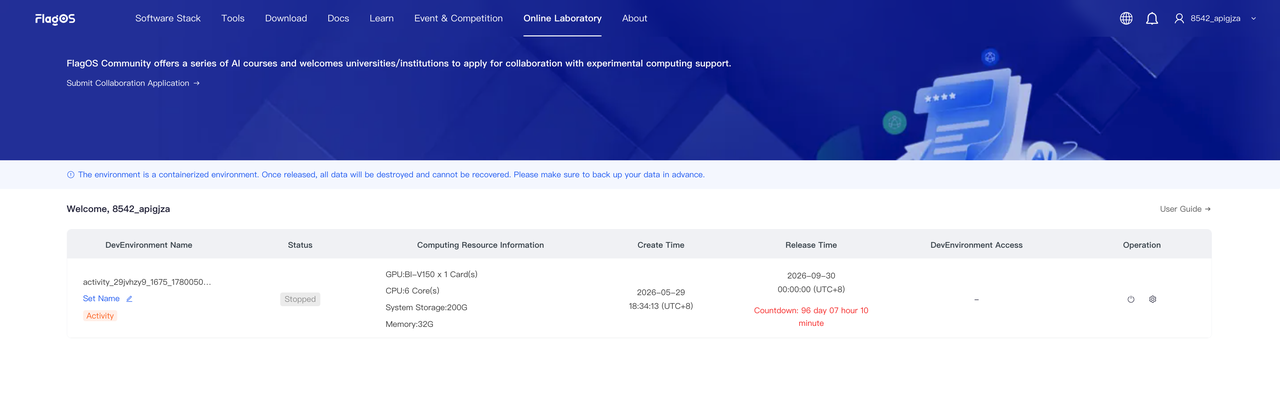 After startup, the Status column changes to Running.
On the Container Instance page, in the Operation column, check the image information:
Navigate to Operation, and click Settings
 .
.In the pop-up window, click Image.
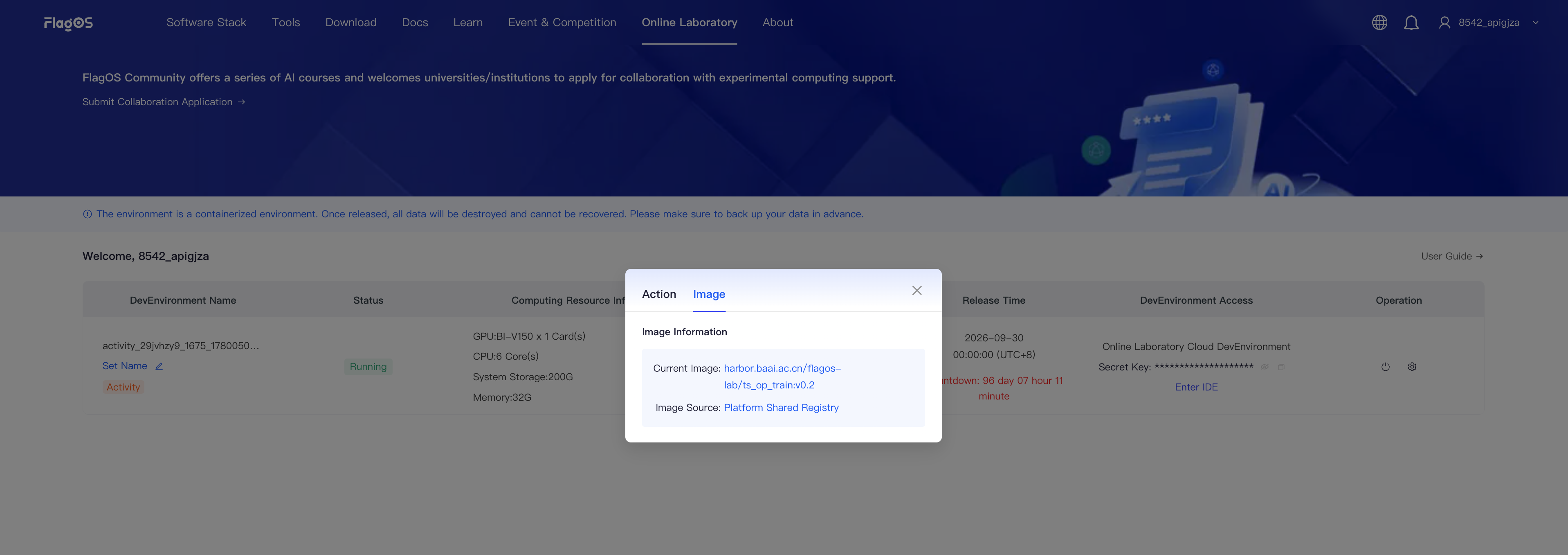
After starting the instance, you can use one of the following methods to access the cloud-based online development environment:
Option 1: SSH Connection To access the development environment via SSH, follow these steps:
Create a public key on your computer.
In the SSH Login column, click Go to Key Management for configure.
On the Key Management page, click Add Public Key in the upper left corner.
In the Add Public Key dialog box, paste the public key created on your computer into SSH Public Key, fill in the public key name in Public Key Name, and click Submit. You can also click Edit or Delete to edit or delete a public key.
Option 2: Direct Access to the Development Environment To access the environment directly, follow these steps:
In the Quick Development column, next to Secret Key, click the Copy icon
 to copy the key.
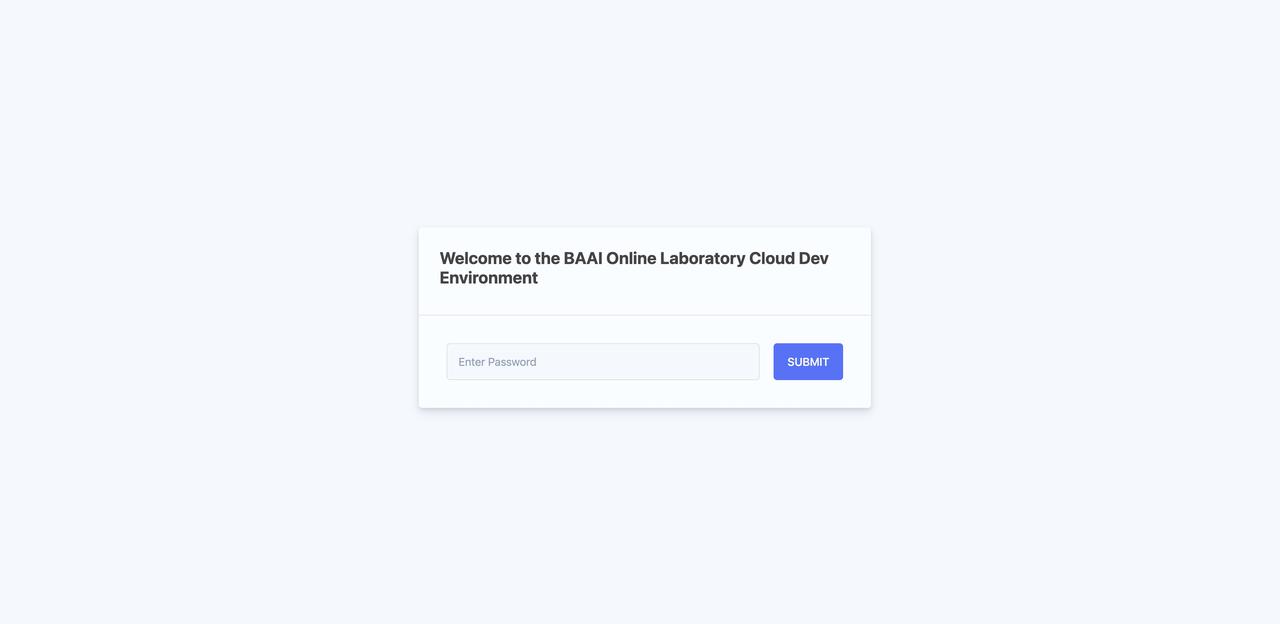
Click Enter IDE. When the Welcome dialog opens, paste the key and click Submit.
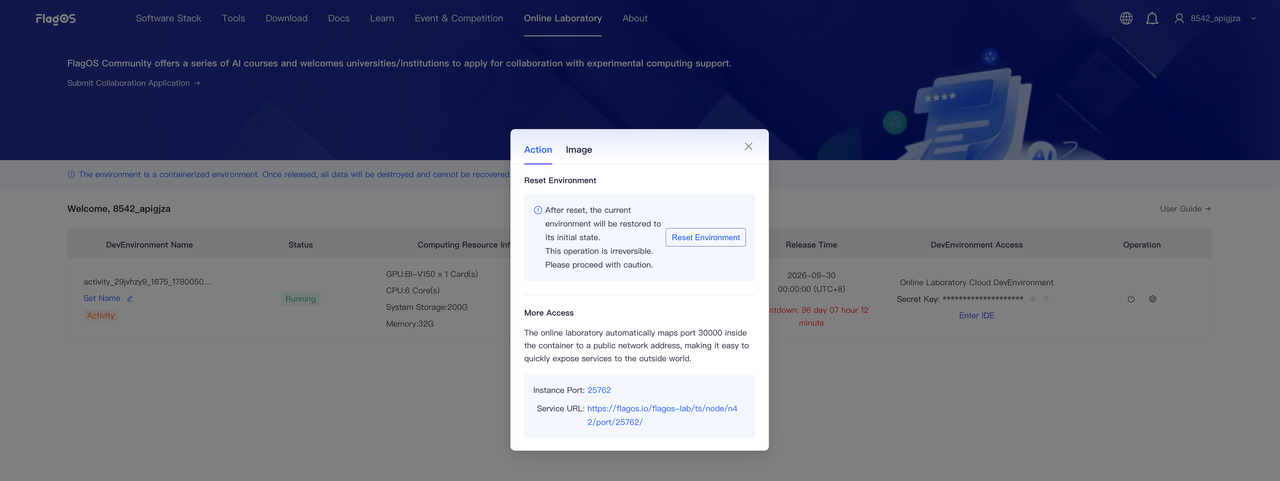
Option 3: Access via Public Network To access the development environment from a public network, follow these steps. You can map the service for the development environment to port 30000.
In the Operation column, click Settings
.In the pop-up window, click Action. In the More Access section, click the Service URL link to open the development environment.
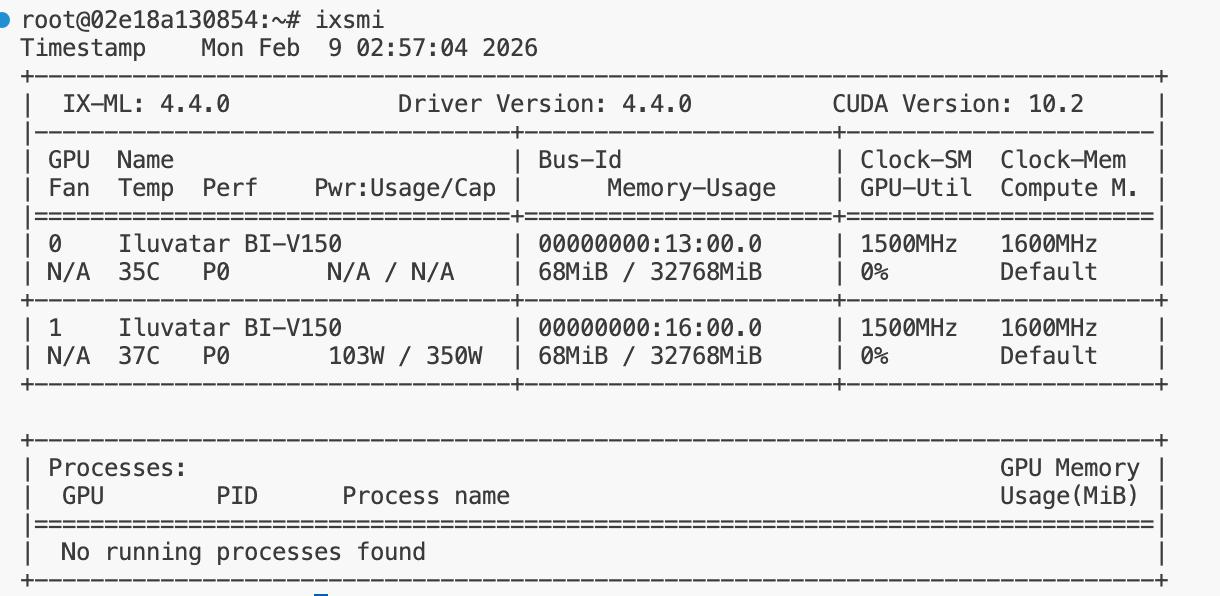
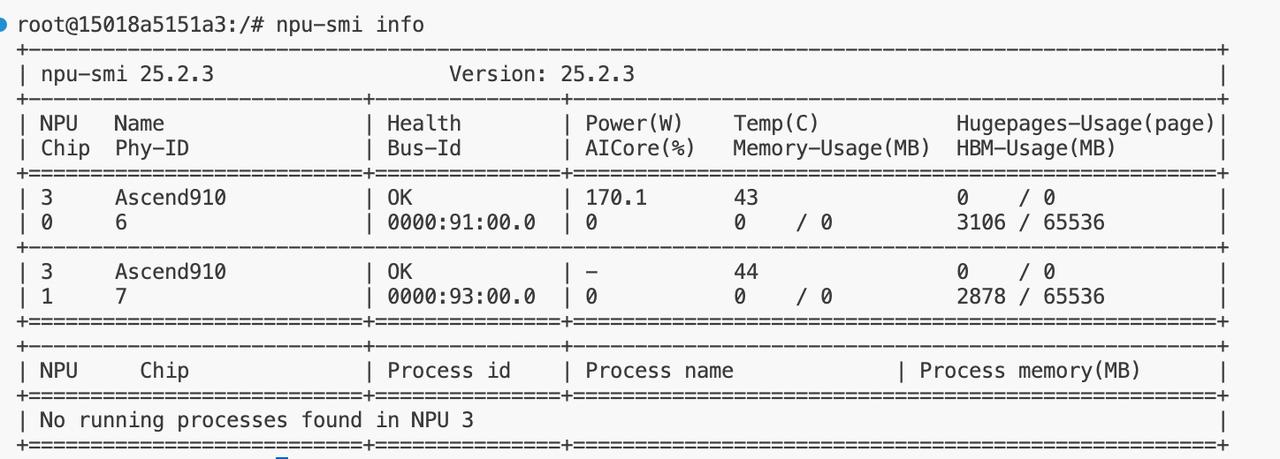
Query the computing power configuration through terminal commands according to the GPU card type.
For Iluvatar GPU cards, use the command:
ixsmi
For Huawei Ascend NPU cards, use the command:
npu-smi info
You can upload or download files such as code packages and models through the following methods:
Right-click your
Workspaceand select Upload…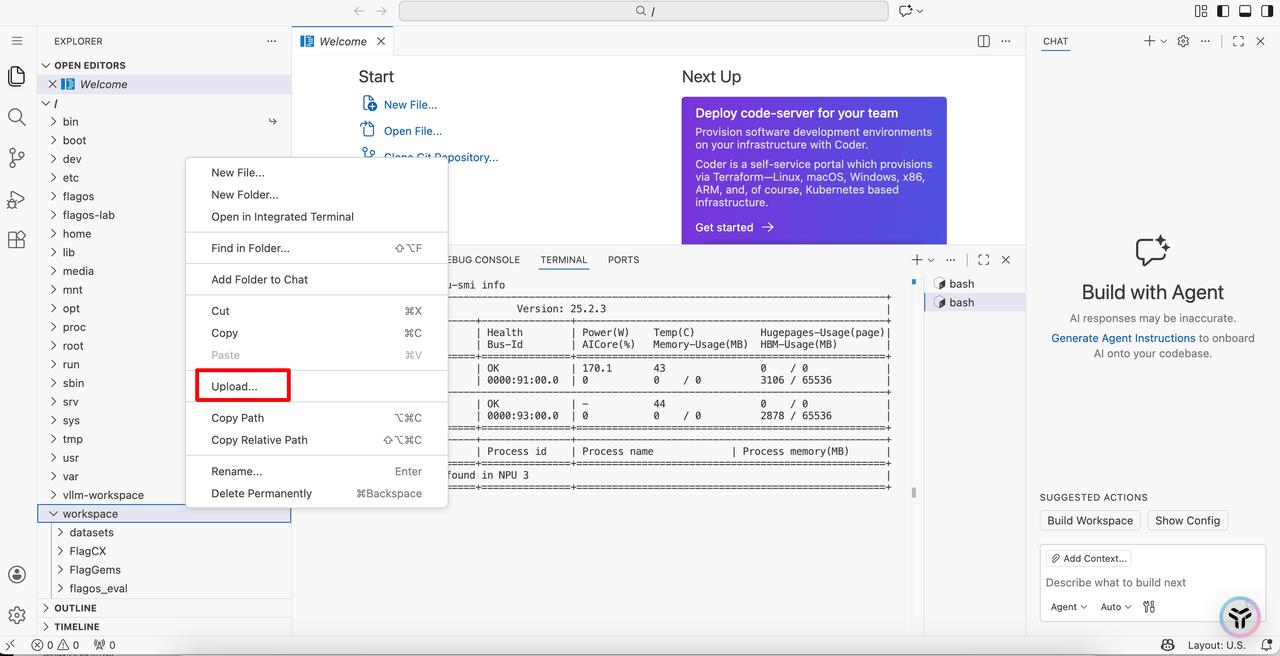
Right-click your
Workspaceand select Download…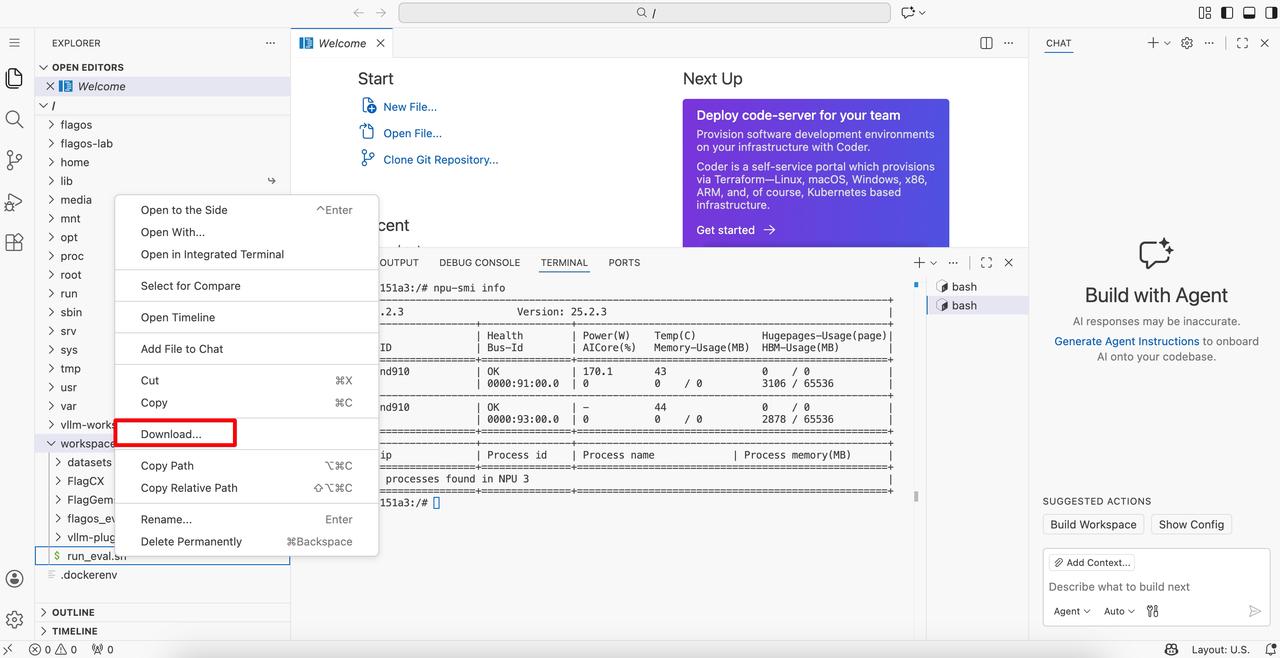
Warning
The experimental environment is a containerized environment. All data will be permanently deleted and unrecoverable upon release. Please back up your data locally in advance.
For detailed usage instructions of Visual Studio Code, please refer to: https://code.visualstudio.com/docs.
Reset Environment#
To reset the development environment to its initial state, perform the following steps:
Navigate to the Operation column, and click Settings
.In the pop-up window, click Action. In the Reset Environment section, click Reset Environment. In the Reset Environment pop-up window, click Confirm.
Warning
This action is irreversible. Please proceed with caution. After the environment is reset, all data will be permanently deleted and cannot be recovered. Please make sure to back up your data locally in advance.