

View generation results and select optimal Kernel#
When the statuses of the Kernel, CUDA Implementation, Correctness Test, and Speedup Ratio Test change to Completed, the Kernel is generated successfully. Then, you can evaluate the testing results and select an optimal Kernel.
Perform the following steps to view the testing results and select an optimal Kernel:
If Correctness Test turns green, the correctness is passed. Then, check whether the overall Speedup Test meets your expectations.
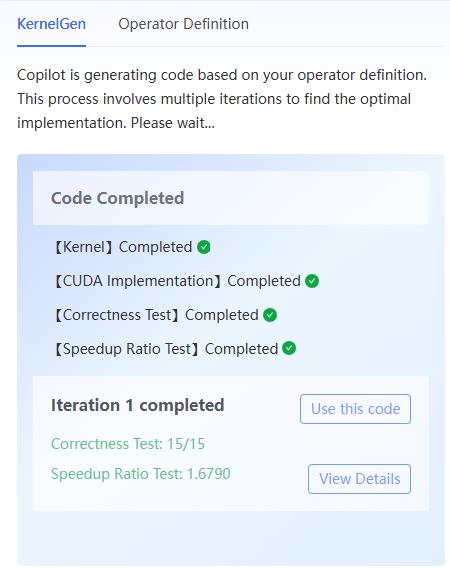
If the overall Speedup Test meets your expectations, perform the following steps:
Click the View Details to view the speedup of each scenario.
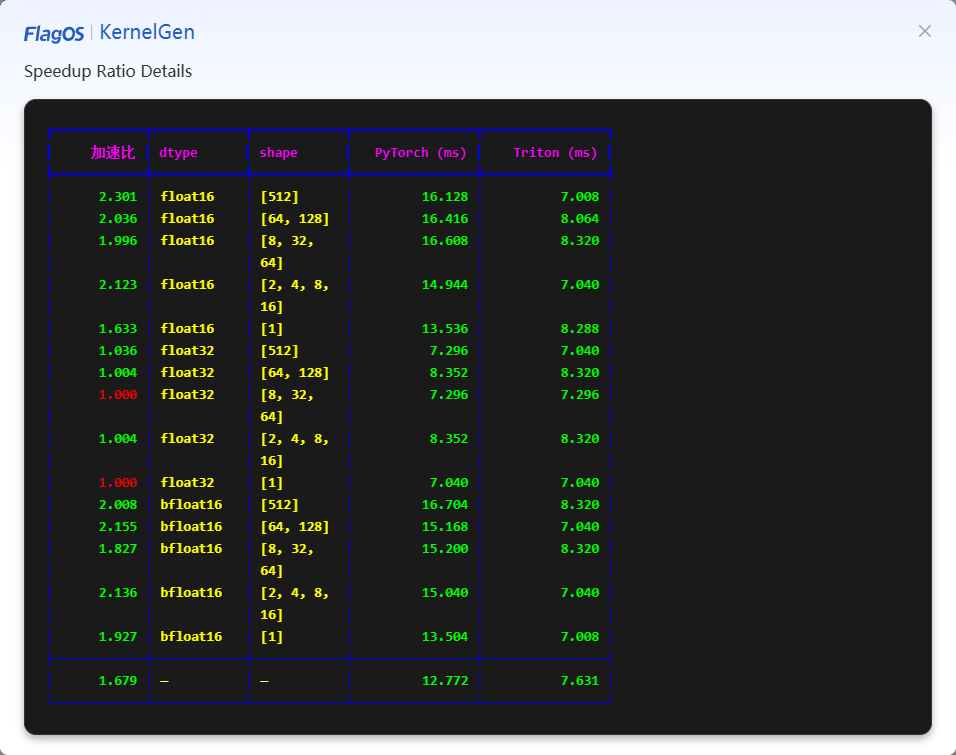
If the speedup of each scenario also meets your expectations, click Download Kernel on the top to download the Kernel code for future use. If you want to use the correctness test and speedup ratio test results, click Correctness Test and Speedup Ratio Test sections to copy and paste the corresponding codes.
If the overall Speedup Test does not meet your expectations, in the Kernel code section, modify the Kernel code and then click Speedup Test to start a new iteration. If there are multiple iterations, you can select one of these iterations and click Use this code on this iteration. Once the corresponding Kernel code appears in the Kernel section, click Download Kernel at the top to download the Kernel code for future use.
If the Correctness Test turns red, you can manually modify the Kernel code in the Kernel section, and then click Correctness Test to start another iteration till the correctness is passed, and download the Kernel.
Note
If your current kernel modifications don’t meet your expectations, you can click an entry in the History section at left to revert to and modify an earlier version of the kernel code.